
Getting Started
-
- Identity Provider (IdP): The Foundation of Sastrify Insights
- Uncover SaaS Usage and Shadow IT with Identity Provider (IdP) Discovery
- Integrating HRIS to Enrich Identities & Insights
- Admin Guide: Deploying the Sastrify Chrome Extension
- Admin Guide: Deploying the Sastrify Microsoft Edge Extension
- Manual Installation Guide: Sastrify Chrome Browser Extension
- Manual Installation Guide: Sastrify Edge Browser Extension
- Setting renewal dates & reminders
- Assigning & Modifying Subscription Owners
- Uploading & Managing Your SaaS Documents in Sastrify
- Sastrify App Support: Get Help & Give Feedback
- Sastrify's commitment to security and privacy standards
- Integrating HRIS to Enrich Identities & Insights
-
- Capturing Subscription Details with Contract AI
- Adding a New Subscription Manually
- Slack Integration: Bringing Sastrify into Your Internal Communication
- How to bulk upload your invoices
- Automating Document Uploads via Email Forwarding
- Managing Your Notification Preferences
- Tools and Spend Importer: Bulk Upload & Visualization
- Tool Matching: Aligning ERP Data with Your Inventory
- Managing Collaboration with Custom Tasks
- Task Automation: Standardizing and Automating Routine Actions
-
- Workflows: Automate procurement processes with consistency
- Requests: Streamline procurement process and internal approval
- Get Procurement Support for New Purchases and Renewals
- How to submit and track Procurement Requests via Jira Integration
- Scope of service: Custom benchmarking & contract review
- Scope of service: Negotiation & renewal support
- Scope of service: Custom SaaS Optimization Advisory
- Purchase your SaaS through the SastriMarket
-
- Connecting Your ERP & Accounting Software
- Spend Import: Validate and fine-tune your imported spend data
- Export spend data from Candis to Sastrify
- Export spend data from Spendesk to Sastrify
- Export spend data from Pleo to Sastrify
- Export spend data from Moss to Sastrify
- Export spend data from DATEV to Sastrify
- Export spend data from Ramp to Sastrify
-
- Configuring Authentication & Access
- User Management: Managing Users and Platform Roles
- Configuring Microsoft SSO Authentication
- Configuring Okta SSO Authentication
- Configuring JumpCloud SSO Authentication
- Configuring Cisco Duo SSO Authentication
- Configuring Cloudflare SSO Authentication
- Configuring OneLogin SSO Authentication
- Having trouble logging in?
- Understanding user roles and permissions
-
- Okta M2M Integration Guide
- Accounting & ERP: Connecting NetSuite to Sastrify
- Accounting & ERP: How to connect Quickbooks
- Accounting & ERP: How to connect Microsoft Dynamics 365
- Accounting & ERP: How to connect Workday ERP
- Accounting & ERP: How to integrate Pleo with Sastrify
- HRIS: Connecting Officient to Sastrify
-
- ERP & Accounting Integration FAQs
- SSO / IDP Discovery Integration FAQs
- Browser Extension FAQs
- HRIS Integration FAQs
- Usage Analytics FAQs
- Contract AI & Subscription Details FAQs
- Tools and Spend Importer FAQs
- Invoices FAQs
- Achieved Savings FAQs
- Form component guide for Sastrify form builder
- What is SaaS and Sastrify's scope of work?
- Who receives the renewal alerts or reminders?
- How does Sastrify work with currencies?
- Is the spend data from accounting export always up-to-date?
- How to work with benchmark prices
- When and how to involve Sastrify in a contract evaluation or negotiation?
- How does Sastrify interact with SaaS vendors?
- How do you handle confidentiality clauses in vendor contracts?
- Why is contract data essential for benchmarking and negotiation support?
Integrating HRIS to Enrich Identities & Insights Print
Modified on: Wed, 13 May, 2026 at 1:59 PM
Integrating Sastrify with your HRIS (e.g., Workday, Personio, BambooHR) transforms employee data into actionable, strategic insights. When combined with data from your Identity Provider—such as Google Workspace, Microsoft Entra, or Okta (a prerequisite for connecting HRIS)—it becomes possible to answer critical questions like: Who is using what?
Modern identity providers like Okta, Google Workspace, and Entra ID serve as the foundation—a single source of truth. Employee data from HR systems enriches these identities with contextual details such as department and cost center.
By matching data from both systems, each identity can be mapped to the corresponding employee, department, and cost center. This enables deeper insights, such as which individuals are using which tools and from which departments. This combined data becomes more reliable, powerful, and valuable, supporting a wide range of analytical use cases.
How to Connect Your HRIS
Requirements:
IdP Dependency: You must have an active Identity Provider (Google, Entra, or Okta) connected to Sastrify first. The IdP serves as the "source of truth" that HRIS data enriches.
Admin Access: You need Admin permissions in both Sastrify and your HRIS platform.
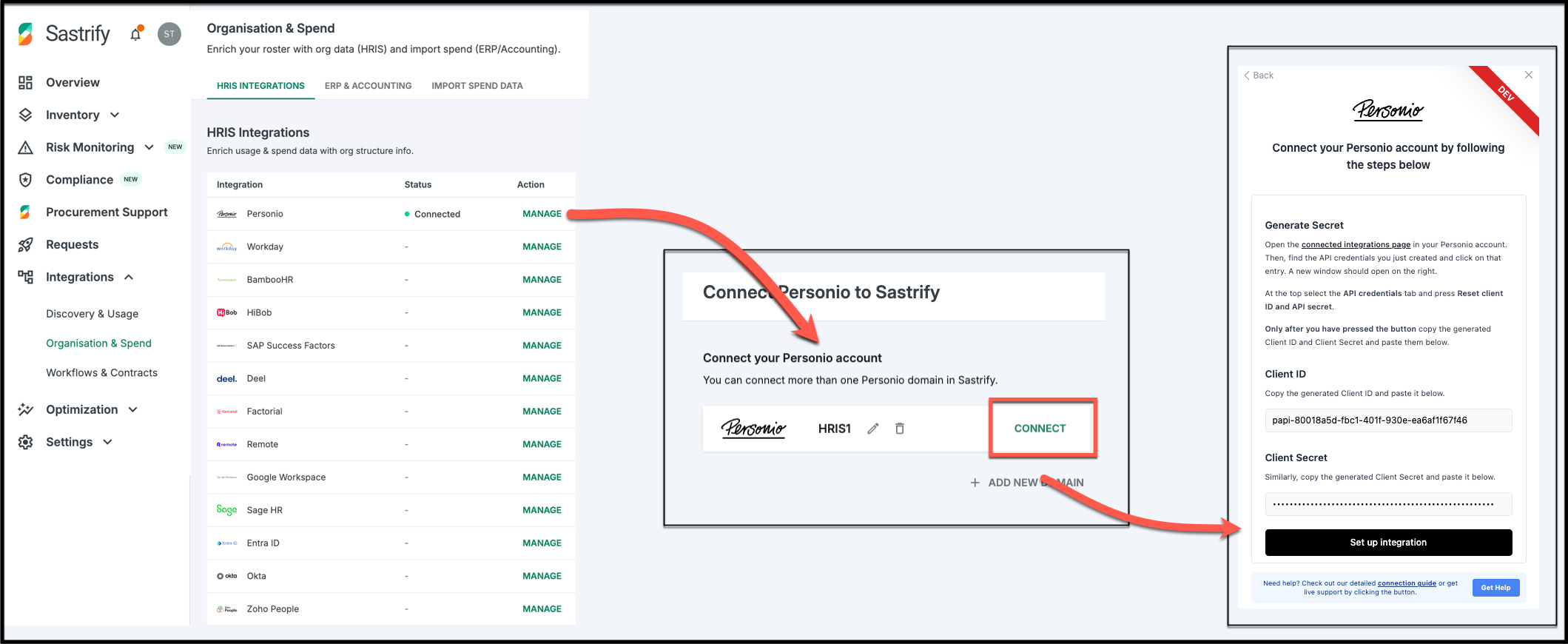
To set up a new integration:
- Click the "Manage" button on any of the HRIS cards to open a setup page.
- Click the "Add New Connection" button.
- Enter the name of the integration.
- Click the check mark to confirm.
- Click the "Connect" button to continue.
- You will be redirected to a guided connection page of your chosen HRIS, where you will be directed to complete a series of steps to authenticate and establish the connection (different HRIS tools will require different sets of information for establishing a successful connection).
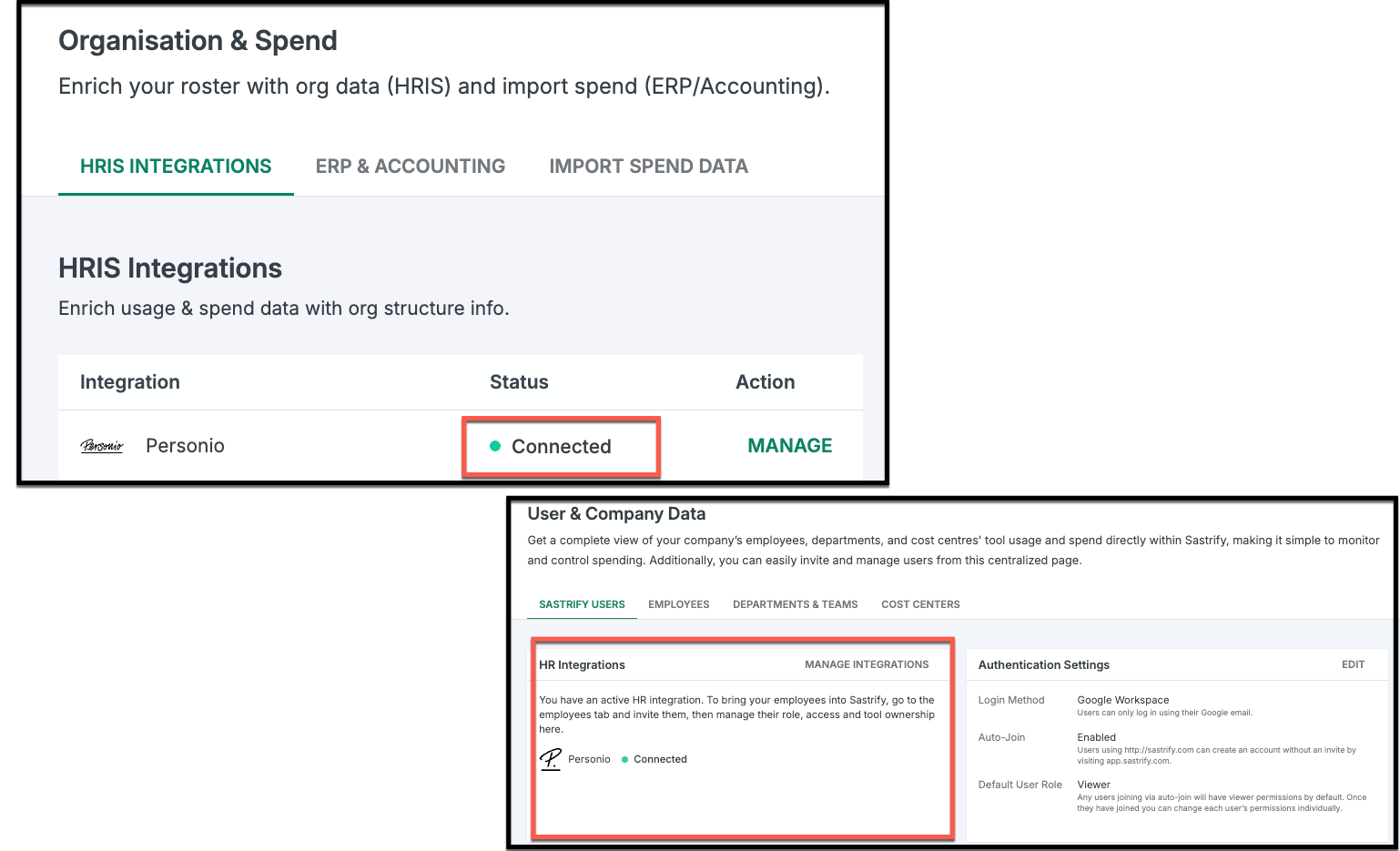
- You will be redirected back to Sastrify's HR Information Systems page, where you can see that the software you selected now has an active connection. (The HRIS connection status is also displayed in Settings > User & Company Data.)
Data Security & Syncing
The integration will retrieve only the following data points:
- Employee data: ID, employeeNumber, firstName, lastName, displayFullName, jobTitle, workEmail, avatar, startDate, terminationDate
- Department data: Name, ID, Parent ID, Manager name, Manager ID
- Team data: Name, ID, Parent ID, Manager name, Manager ID
- Cost Center data: Name, ID, Parent ID, Manager name, Manager ID
We treat your personnel data with the highest level of security.
One-Way Sync: Sastrify reads your HRIS data and reflects the data as provided by the source; it never writes back to or modifies your HR system.
Non-Sensitive Data: Sastrify does not access salaries, bank details, or private performance records.
Initial Sync: The first sync may take a few minutes to up to 120 minutes, depending on the tool and data volume.
Frequency: Data syncs automatically every 3 hours (at minimum once daily).
Encryption: All data is encrypted both in transit and at rest using industry-standard protocols. This dual-layer encryption ensures comprehensive protection of your HR data. The data is used solely for the intended functionality within the Sastrify platform.
IMPORTANT: Only Sastrify Admins can view this organizational data; it is hidden from Viewers and Contributors.Assign tools to departments and cost centers
To complete the setup and gain a consolidated view of tool usage, assign tools to the appropriate departments, teams, and cost centers. There are two ways to perform the assignments:
1. Assigning Departments, Teams, and Cost Centers from your Tool Stack
- Go to the Tool Stack page.
- Click on the 3-dots icon of the tool you want to assign or change an owner to.
- Select “Edit Info” to open an input view where you can enter key information.
- Look for the "Department", "Team", and "Cost Center" field.
- Choose from each of the drop-down menu the value best suited for that specific tool.
- Confirm your selection by hitting "Save".
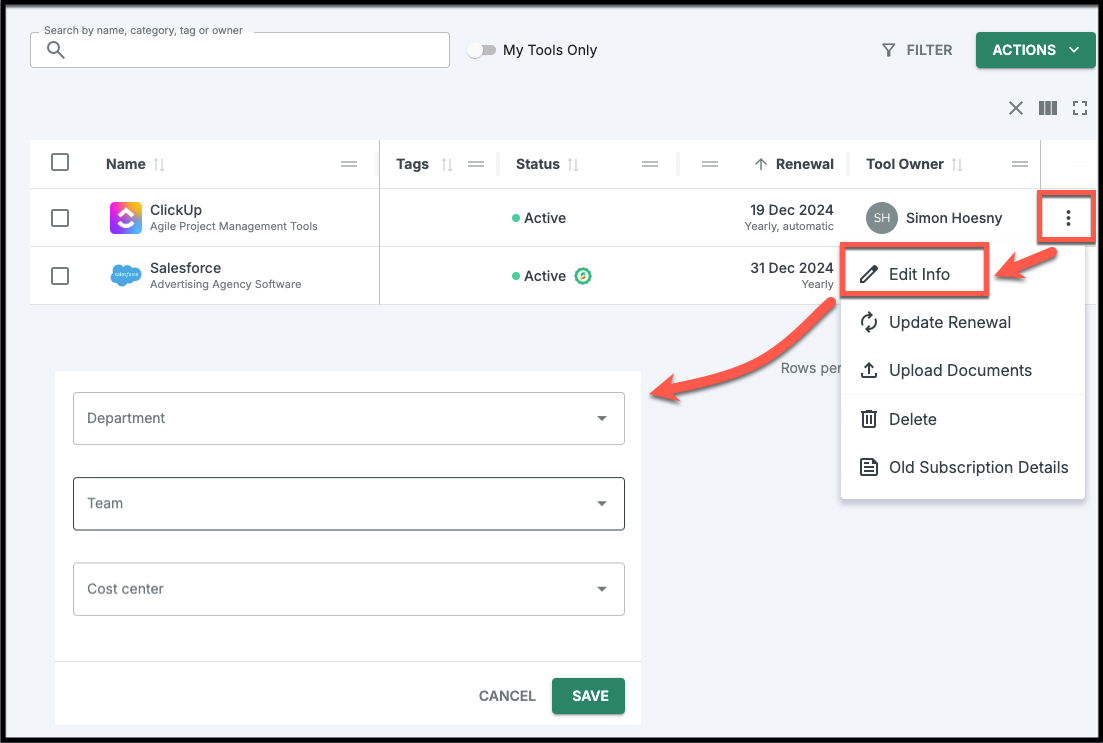
Tips: You can also assign or change tool owners in your tool stack in bulk at one time by selecting multiple tools and then clicking the "Edit Details" button in the lower right corner of the page.2. Assigning Departments, Teams, and Cost Centers from the tool page
- Go to the Tool Stack section.
- Select the desired tool or subscription.
- Click the "Edit" button located at the upper right corner of the page
- Find and select the tool owner in the drop-down menu.
- Confirm your selection by hitting "Save".
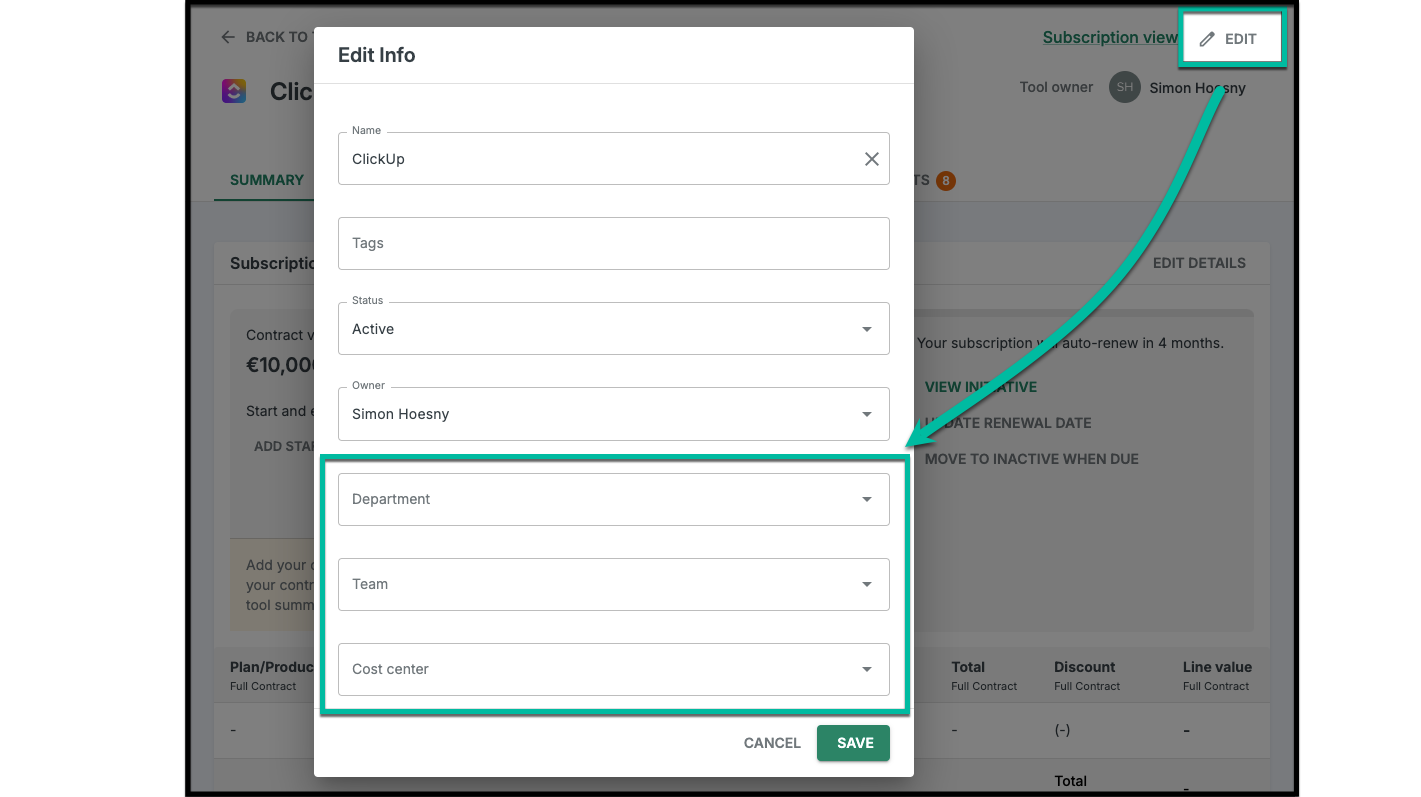
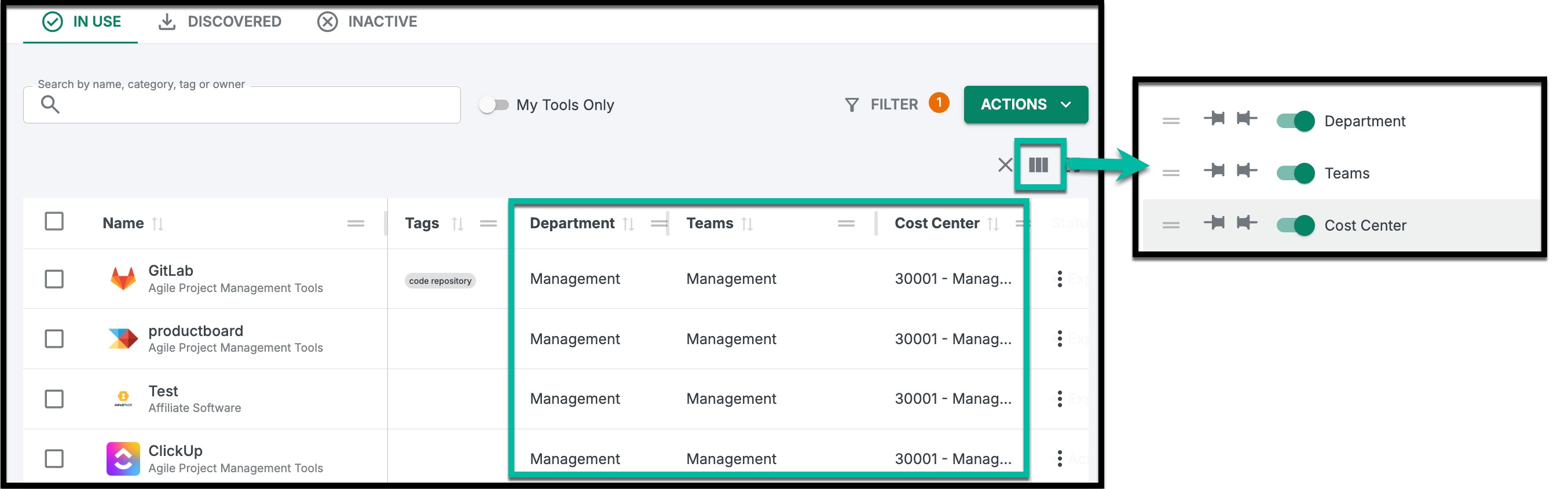
In your tool stack, you can display the departments, teams, and cost centers you’ve added by clicking the “Show/Hide Columns” icon and enabling the toggles for Department, Teams, and Cost Centers.
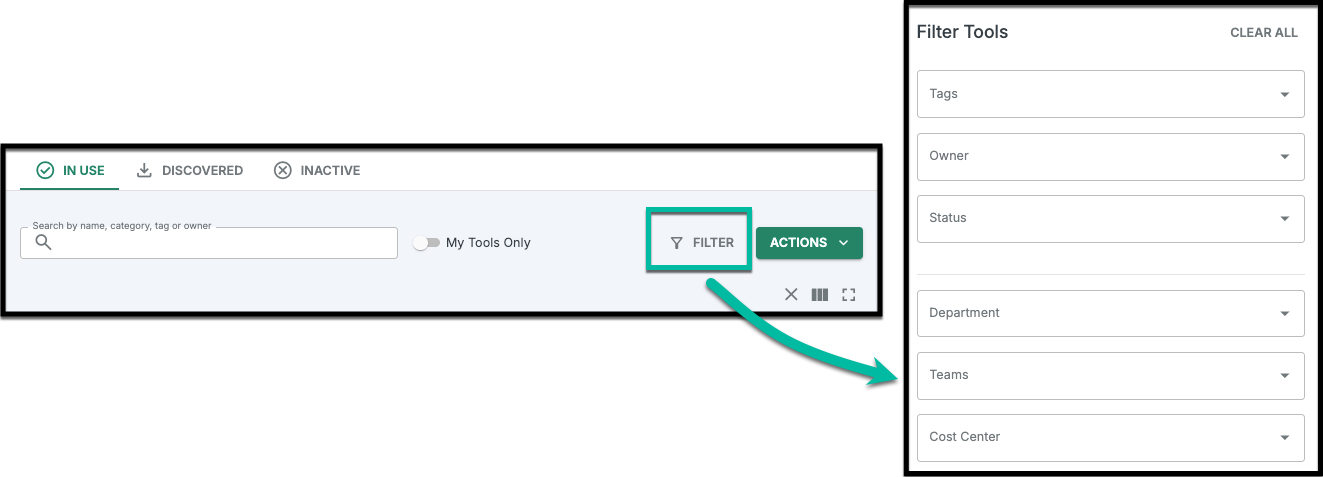
You can use the filter functionality to narrow down your stack by department, team, or cost center.
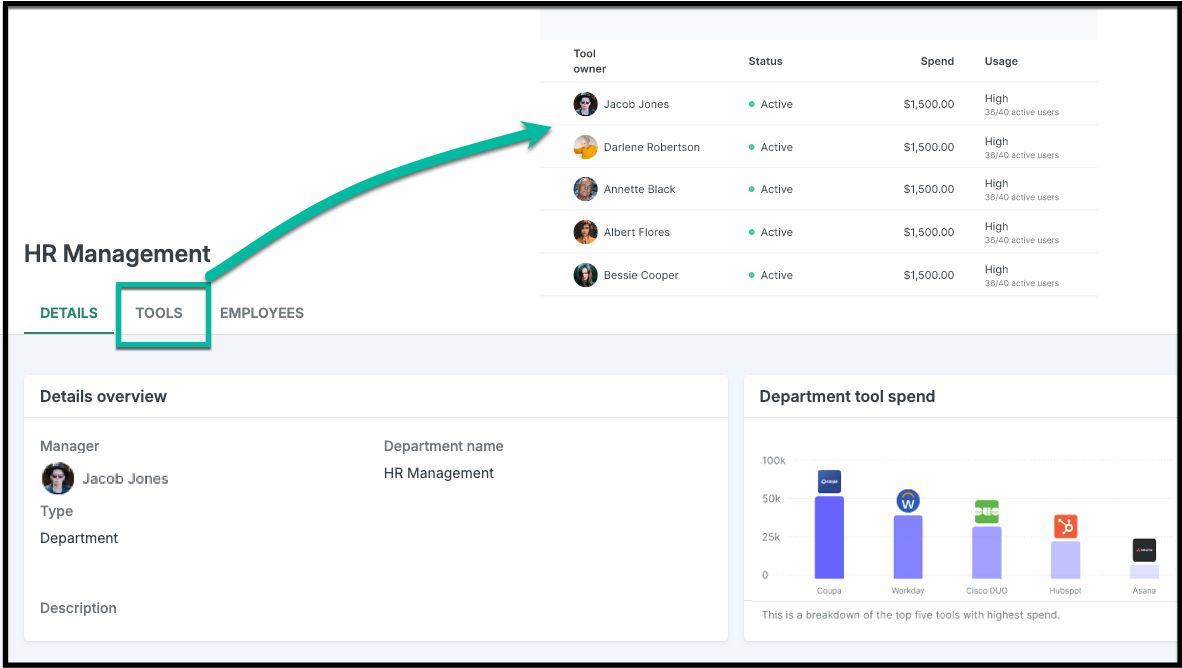
Access consolidated views per departments and cost centers
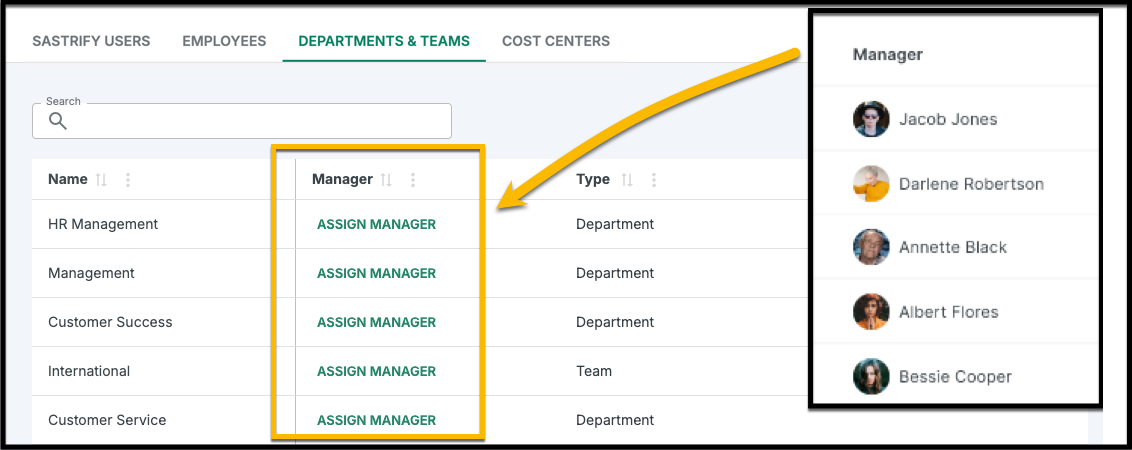
Assign managers to departments and cost centers
You can assign managers to departments, teams, and cost centers, providing added visibility and control. This helps finance and procurement teams identify responsible parties at the departmental or cost center level, alongside tool owners for activities like budget reviews, usage audits, and renewal preparations.
Frequently Asked Questions
Please refer to the HRIS Integration FAQ page for a complete list of frequently asked questions
Did you find it helpful? Yes No
Send feedback