
Insights & Risk Monitoring
-
- Identity Provider (IdP): The Foundation of Sastrify Insights
- Uncover SaaS Usage and Shadow IT with Identity Provider (IdP) Discovery
- Integrating HRIS to Enrich Identities & Insights
- Admin Guide: Deploying the Sastrify Chrome Extension
- Admin Guide: Deploying the Sastrify Microsoft Edge Extension
- Manual Installation Guide: Sastrify Chrome Browser Extension
- Manual Installation Guide: Sastrify Edge Browser Extension
- Setting renewal dates & reminders
- Assigning & Modifying Subscription Owners
- Uploading & Managing Your SaaS Documents in Sastrify
- Sastrify App Support: Get Help & Give Feedback
- Sastrify's commitment to security and privacy standards
- Integrating HRIS to Enrich Identities & Insights
-
- Capturing Subscription Details with Contract AI
- Adding a New Subscription Manually
- Slack Integration: Bringing Sastrify into Your Internal Communication
- How to bulk upload your invoices
- Automating Document Uploads via Email Forwarding
- Managing Your Notification Preferences
- Tools and Spend Importer: Bulk Upload & Visualization
- Tool Matching: Aligning ERP Data with Your Inventory
- Managing Collaboration with Custom Tasks
- Task Automation: Standardizing and Automating Routine Actions
-
- Workflows: Automate procurement processes with consistency
- Requests: Streamline procurement process and internal approval
- Get Procurement Support for New Purchases and Renewals
- How to submit and track Procurement Requests via Jira Integration
- Scope of service: Custom benchmarking & contract review
- Scope of service: Negotiation & renewal support
- Scope of service: Custom SaaS Optimization Advisory
- Purchase your SaaS through the SastriMarket
-
- Connecting Your ERP & Accounting Software
- Spend Import: Validate and fine-tune your imported spend data
- Export spend data from Candis to Sastrify
- Export spend data from Spendesk to Sastrify
- Export spend data from Pleo to Sastrify
- Export spend data from Moss to Sastrify
- Export spend data from DATEV to Sastrify
- Export spend data from Ramp to Sastrify
-
- Configuring Authentication & Access
- User Management: Managing Users and Platform Roles
- Configuring Microsoft SSO Authentication
- Configuring Okta SSO Authentication
- Configuring JumpCloud SSO Authentication
- Configuring Cisco Duo SSO Authentication
- Configuring Cloudflare SSO Authentication
- Configuring OneLogin SSO Authentication
- Having trouble logging in?
- Understanding user roles and permissions
-
- Okta M2M Integration Guide
- Accounting & ERP: Connecting NetSuite to Sastrify
- Accounting & ERP: How to connect Quickbooks
- Accounting & ERP: How to connect Microsoft Dynamics 365
- Accounting & ERP: How to connect Workday ERP
- Accounting & ERP: How to integrate Pleo with Sastrify
- HRIS: Connecting Officient to Sastrify
-
- ERP & Accounting Integration FAQs
- SSO / IDP Discovery Integration FAQs
- Browser Extension FAQs
- HRIS Integration FAQs
- Usage Analytics FAQs
- Contract AI & Subscription Details FAQs
- Tools and Spend Importer FAQs
- Invoices FAQs
- Achieved Savings FAQs
- Form component guide for Sastrify form builder
- What is SaaS and Sastrify's scope of work?
- Who receives the renewal alerts or reminders?
- How does Sastrify work with currencies?
- Is the spend data from accounting export always up-to-date?
- How to work with benchmark prices
- When and how to involve Sastrify in a contract evaluation or negotiation?
- How does Sastrify interact with SaaS vendors?
- How do you handle confidentiality clauses in vendor contracts?
- Why is contract data essential for benchmarking and negotiation support?
AI-Powered Risk Scoring: How Shadow IT Radar Evaluates Assets Print
Modified on: Fri, 13 Feb, 2026 at 11:40 AM

Understanding the Risk Levels
Every discovered asset is assigned a numerical score from 0 to 100. A higher score indicates a higher risk profile.
- Low Risk (0-35): Minimal risk with no significant threats to security or operations.
- Medium Risk (36-64): Moderate risk with potential issues that should be reviewed and addressed.
- High Risk (65-100): Significant risk requiring immediate action to mitigate security or operational threats.
Pro-Tip: Actionable Defense
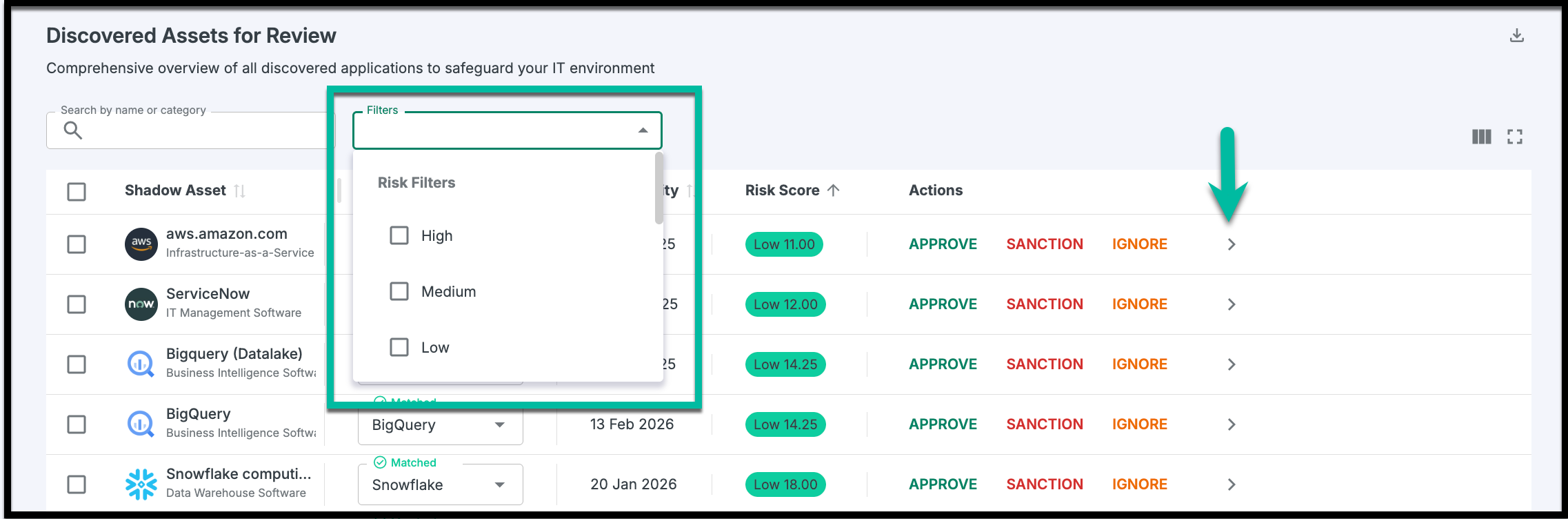
Don’t feel overwhelmed by the total number of assets. Use the Filter tool in the Shadow IT Radar to view assets from high to low risk. Click the arrow next to a specific asset to see a detailed breakdown of which of the 10 criteria contributed to its risk rating.
The 10 Scoring Criteria
Sastrify’s AI evaluates vendors across ten distinct categories. Each category is weighted based on its impact on enterprise security and compliance, as well as the common factors that SaaS companies consider when conducting risk assessments.
Security Posture
Evaluation: Evaluate security practices and certifications.
Weight: 15
- 0: Holds recognized security certifications (e.g., ISO 27001, SOC 2) and employs robust security measures.
- 50: Implements basic security measures without formal certifications.
- 100: Lacks adequate security measures; no certifications.
Financial Stability
Evaluation: Examine financial health and sustainability.
Weight: 10
- 0: Strong financial health; profitable and stable.
- 25: Good financial health; growing revenue but not consistently profitable.
- 50: Moderate financial health; some concerns about sustainability.
- 100: Poor financial health; significant financial risks.
- Data Protection Compliance
Evaluation: Assess compliance with GDPR and other relevant data protection regulations.
Weight: 20
- 0: Fully compliant with all data protection regulations (e.g., GDPR, CCPA).
- 50: Partially compliant; some gaps in policies or implementation.
- 100: Non-compliant; significant violations or lack of policies.
Vendor Reputation and History
Evaluation: Assess market reputation and historical performance.
Weight: 10
- 0: Excellent reputation, strong market presence, and positive feedback.
- 25: Good reputation; mostly positive feedback but with some minor issues.
- 50: Mixed reputation; some negative feedback or incidents.
- 100: Poor reputation; unresolved issues or scandals.
Business Continuity and Disaster Recovery
Evaluation: Evaluate the robustness of continuity and recovery plans.
Weight: 10
- 0: Comprehensive, documented, and regularly tested plans.
- 50: Plans exist but are incomplete or infrequently tested.
- 100: No formal plans in place; unprepared for disruptions.
Regulatory Compliance
Evaluation: Check compliance with industry-specific regulations (e.g., HIPAA, PCI DSS).
Weight: 10
- 0: Fully compliant with all relevant industry regulations (e.g., HIPAA, PCI DSS).
- 50: Partially compliant; working towards full compliance.
- 100: Non-compliant; disregards industry regulations.
Operational Maturity
Evaluation: Assess the maturity of operational processes.
Weight: 5
- 0: Highly optimized processes (e.g., CMMI Level 5).
- 50: Defined, established processes with room for improvement.
- 100: Poor operational maturity; ad hoc or chaotic processes.
Supply Chain Risks
Evaluation: Analyze risks associated with third-party dependencies.
Weight: 5
- 0: Strong control over suppliers and partners.
- 50: Some controls are in place, but gaps exist.
- 100: High risk; poor control over third-party dependencies.
Incident History
Evaluation: Review past security incidents and responses.
Weight: 10
- 0: No significant incidents; proactive risk management.
- 25: Minor incidents resolved effectively.
- 50: Major incidents that were resolved but impacted operations.
- 100: Unresolved or recurring incidents; poor incident management.
Support and Maintenance Capabilities
Evaluation: Evaluate the quality and reliability of support services.
Weight: 5
- 0: Excellent support; high customer satisfaction and responsiveness.
- 25: Good support; reliable but with occasional issues.
- 50: Adequate support; noticeable delays or limitations.
- 100: Poor support; frequent complaints or unavailability.
Did you find it helpful? Yes No
Send feedback