
Getting Started
-
- Identity Provider (IdP): The Foundation of Sastrify Insights
- Uncover SaaS Usage and Shadow IT with Identity Provider (IdP) Discovery
- Integrating HRIS to Enrich Identities & Insights
- Admin Guide: Deploying the Sastrify Chrome Extension
- Admin Guide: Deploying the Sastrify Microsoft Edge Extension
- Manual Installation Guide: Sastrify Chrome Browser Extension
- Manual Installation Guide: Sastrify Edge Browser Extension
- Setting renewal dates & reminders
- Assigning & Modifying Subscription Owners
- Uploading & Managing Your SaaS Documents in Sastrify
- Sastrify App Support: Get Help & Give Feedback
- Sastrify's commitment to security and privacy standards
- Integrating HRIS to Enrich Identities & Insights
-
- Capturing Subscription Details with Contract AI
- Adding a New Subscription Manually
- Slack Integration: Bringing Sastrify into Your Internal Communication
- How to bulk upload your invoices
- Automating Document Uploads via Email Forwarding
- Managing Your Notification Preferences
- Tools and Spend Importer: Bulk Upload & Visualization
- Tool Matching: Aligning ERP Data with Your Inventory
- Managing Collaboration with Custom Tasks
- Task Automation: Standardizing and Automating Routine Actions
-
- Workflows: Automate procurement processes with consistency
- Requests: Streamline procurement process and internal approval
- Get Procurement Support for New Purchases and Renewals
- How to submit and track Procurement Requests via Jira Integration
- Scope of service: Custom benchmarking & contract review
- Scope of service: Negotiation & renewal support
- Scope of service: Custom SaaS Optimization Advisory
- Purchase your SaaS through the SastriMarket
-
- Connecting Your ERP & Accounting Software
- Spend Import: Validate and fine-tune your imported spend data
- Export spend data from Candis to Sastrify
- Export spend data from Spendesk to Sastrify
- Export spend data from Pleo to Sastrify
- Export spend data from Moss to Sastrify
- Export spend data from DATEV to Sastrify
- Export spend data from Ramp to Sastrify
-
- Configuring Authentication & Access
- User Management: Managing Users and Platform Roles
- Configuring Microsoft SSO Authentication
- Configuring Okta SSO Authentication
- Configuring JumpCloud SSO Authentication
- Configuring Cisco Duo SSO Authentication
- Configuring Cloudflare SSO Authentication
- Configuring OneLogin SSO Authentication
- Having trouble logging in?
- Understanding user roles and permissions
-
- Okta M2M Integration Guide
- Accounting & ERP: Connecting NetSuite to Sastrify
- Accounting & ERP: How to connect Quickbooks
- Accounting & ERP: How to connect Microsoft Dynamics 365
- Accounting & ERP: How to connect Workday ERP
- Accounting & ERP: How to integrate Pleo with Sastrify
- HRIS: Connecting Officient to Sastrify
-
- ERP & Accounting Integration FAQs
- SSO / IDP Discovery Integration FAQs
- Browser Extension FAQs
- HRIS Integration FAQs
- Usage Analytics FAQs
- Contract AI & Subscription Details FAQs
- Tools and Spend Importer FAQs
- Invoices FAQs
- Achieved Savings FAQs
- Form component guide for Sastrify form builder
- What is SaaS and Sastrify's scope of work?
- Who receives the renewal alerts or reminders?
- How does Sastrify work with currencies?
- Is the spend data from accounting export always up-to-date?
- How to work with benchmark prices
- When and how to involve Sastrify in a contract evaluation or negotiation?
- How does Sastrify interact with SaaS vendors?
- How do you handle confidentiality clauses in vendor contracts?
- Why is contract data essential for benchmarking and negotiation support?
Manual Installation Guide: Sastrify Chrome Browser Extension Print
Modified on: Thu, 12 Feb, 2026 at 10:45 PM
The Sastrify Browser Extension is a lightweight browser add-on designed to enhance visibility into SaaS usage across your organization. It seamlessly supports the discovery of shadow IT and provides actionable usage insights directly within your Sastrify platform.
The browser extension can be installed using one of the following methods:
Admin Installation (Recommended): This centralized method allows an administrator to remotely deploy the extension across the entire organization in a single action. It ensures a seamless, company-wide rollout without requiring any action from individual users.
Manual Installation: This decentralized approach requires your Sastrify admin to send installation notifications to selected users. Each notified employee must then manually install the browser extension on their own work browser.
IN THIS ARTICLE
- Data Collection and Privacy Safeguards
- Admin Guide: Initiating the Rollout
- End User Guide: How to Install
- Frequently Asked Questions
Data Collection and Privacy Safeguards
The Sastrify Browser Extension operates at the level of the managed browser profile. Any SaaS application accessed within this profile may be detected at the domain level. It collects the following data:
- Website hostnames of monitored SaaS tools
- User interaction metrics (e.g., click counts, keystroke counts, and file upload events), where only the frequency or occurrence is tracked—not the actual keys pressed or the contents of uploaded files.
- Session duration and timestamps (access and exit times)
- Configuration data, such as monitored product URLs
- Work email address associated with the managed Chrome work profile, which serves solely as an Employee/User ID to attribute collected usage data.
The extension tracks SaaS activity occurring within the entire managed work browser profile, regardless of which account (work or personal) is used to access a SaaS application. Every 15 minutes, it collects data and sends it to the server.
In doing so, we maintain the following approaches to data handling:
- User identifiers are cryptographically hashed to ensure anonymization.
- Only whitelisted business SaaS applications are monitored. We apply automatic exclusion of certain domains, including career sites, job boards, and non-business application URLs.
- Data is transmitted securely via HTTPS, using OAuth for authentication.
- Only essential usage metrics are gathered to support organizational analytics.
Important:
Even if the SaaS applications are whitelisted, SaaS domain usage may still appear in Sastrify if employees access them using personal accounts within their managed work browser profile (e.g., personal Gmail).
After the installation of the browser extension, to keep personal activity separate, employees are advised to use a non-managed browser profile for private use.
Admin Guide: Initiating the Rollout
As mentioned above, this method involves two steps: First, your Sastrify admin initiates the rollout by sending installation notifications to selected users based on the user list in your Sastrify account. Then, each notified user follows the instructions and uses the provided link to manually install the extension on their work browser.Step 1: Enable the Connection in Sastrify
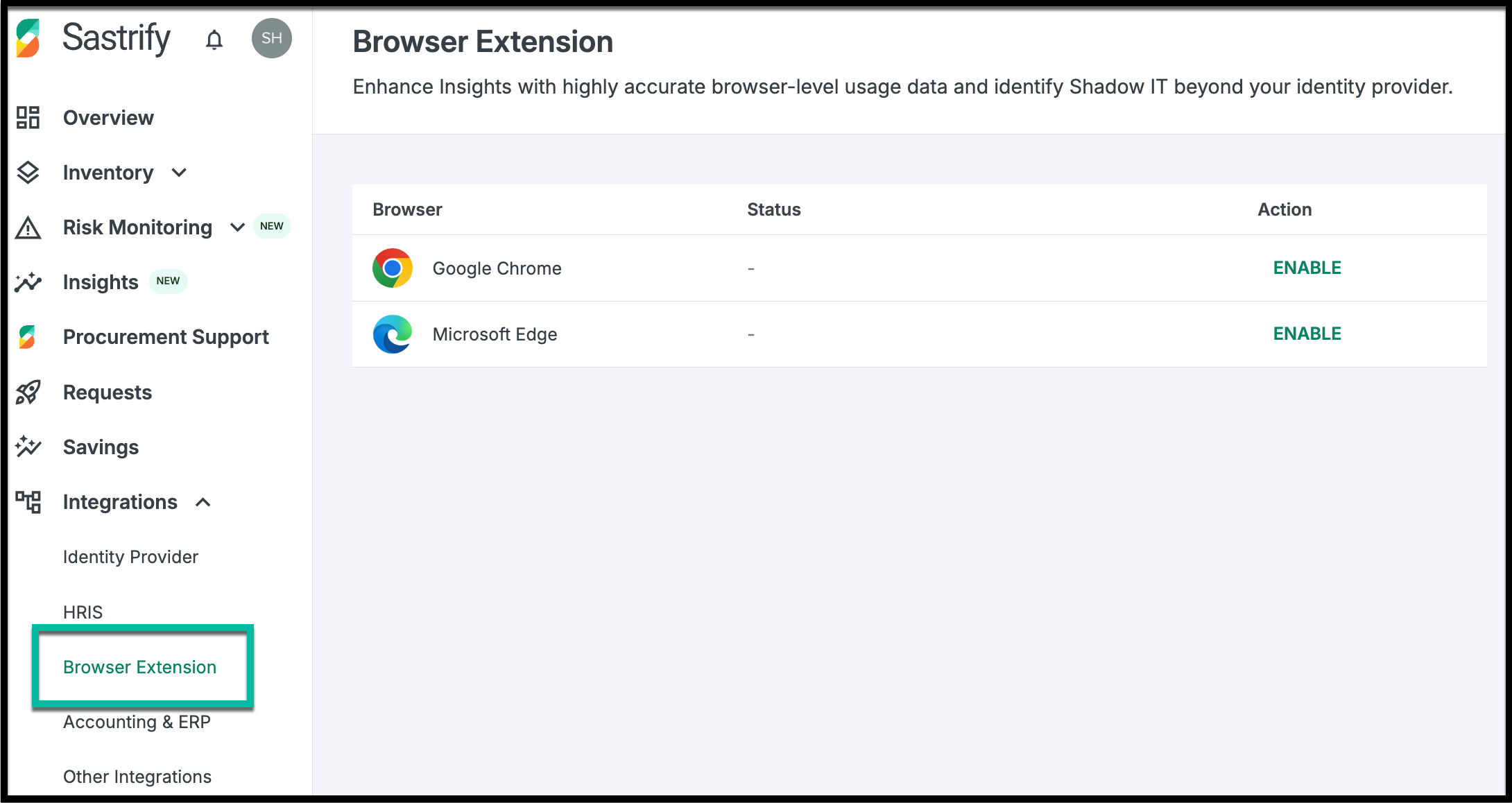
- Log into Sastrify and go to Integrations > Browser Extension.
- Find the Google Chrome and click Enable.
Step 2: Set Up the Identities List via Identity Provider (IdP) Integration
Why is this step required? The browser extension relies on a verified user list—specifically, a list of users within your organization obtained through the Identity Provider (IDP) sync. No action is required from individual users. However, the extension can only be deployed to—and collect usage data from—these verified users. As a result, completing this step is mandatory for installation and essential to ensure accurate tracking and reporting.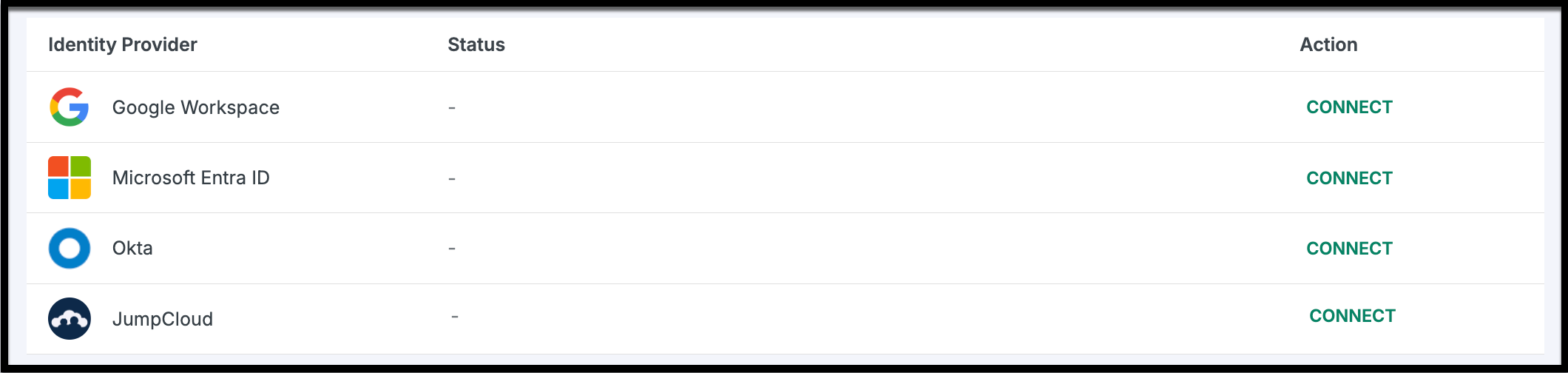
- If your Identity Provider (IdP) integration is not connected, you’ll be prompted to establish the integration.
- Find your Identity Provider (IdP) software card and click Connect.
- Follow the technical instructions provided to complete the connection.
- Once redirected back to Sastrify, your status will show as "Connected."
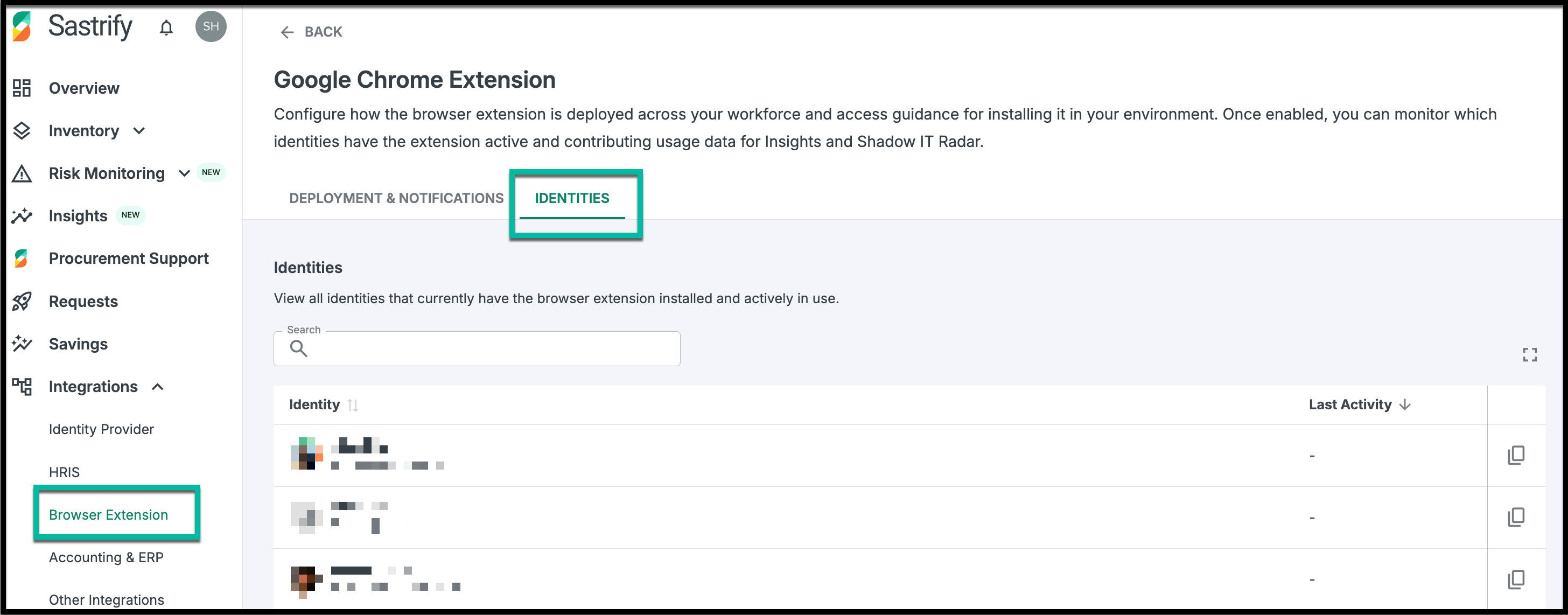
Once the user list is created, it can be found under the "Identities" tab on the browser extension connection page. Only the users listed here will have their usage interactions—such as click counts, keystroke counts, and file upload events—tracked and collected after a successful admin installation of the browser extension.
Step 3: Send the instructions to the targeted users
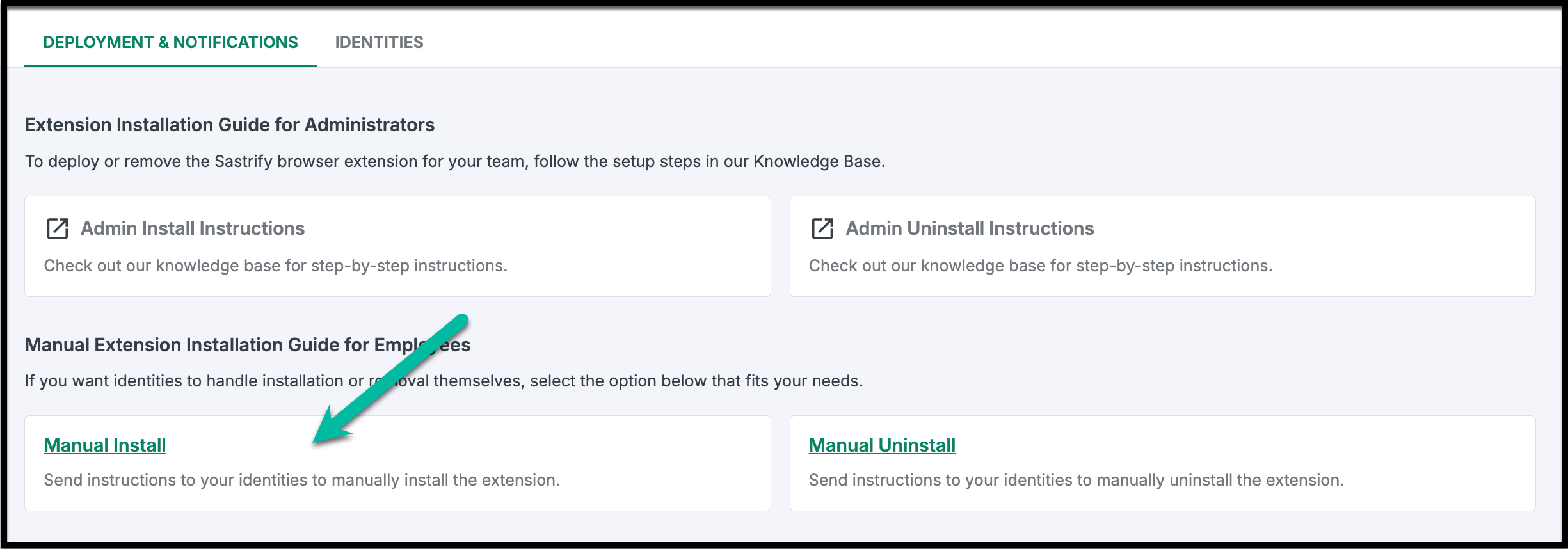
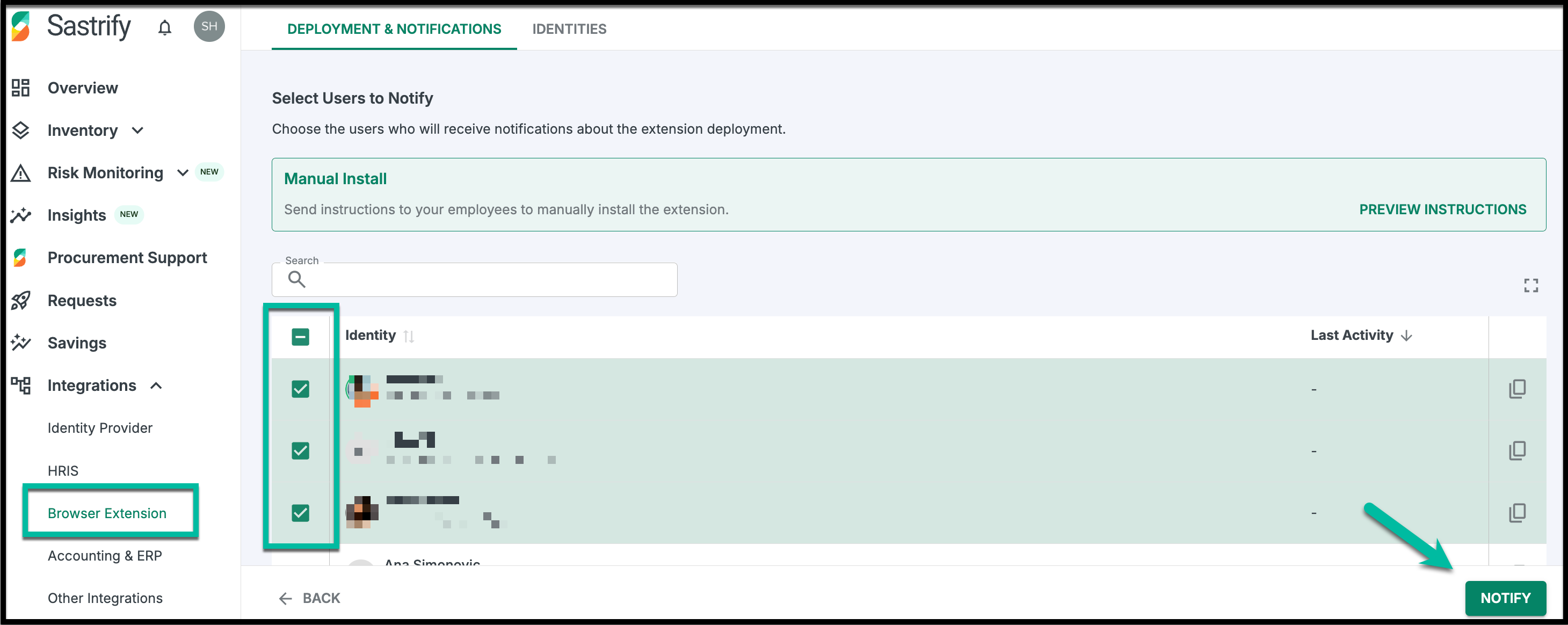
- In the setup screen, click Manual Install.
- Click View Instructions to preview the step-by-step guide your users will receive.
- Check the boxes for the target employees and click Notify. They will receive an automated email with a unique installation link.
End User Guide: How to Install
Before you begin: please verify your browser profile and ensure that the extension is installed only on your company-managed browser profile. Installing the extension on a personal or private profile will sync your private browsing activity with Sastrify.
When you received an email from your Admin regarding the Sastrify extension, follow these steps:
Log in to your company-managed Chrome profile. The extension will not function on personal or non-managed profiles.
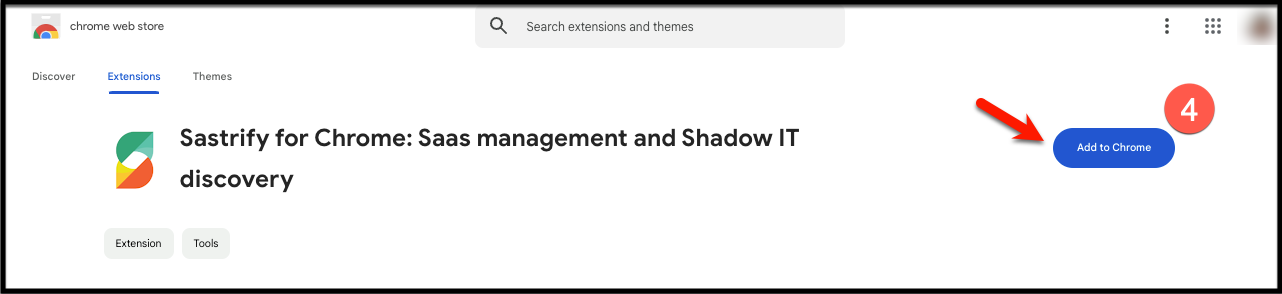
Click the link in the email to open the Sastrify Chrome Extension page in the Chrome Web Store.
On the Chrome Web Store page, click Add to Chrome, then confirm by clicking Add Extension in the pop-up.
Once the Sastrify icon appears in your toolbar, you’re all set!
IMPORTANT: You must use the link provided in your email. Simply searching for the extension in the Web Store will not link the extension to your company account correctly.Frequently Asked Questions
Please refer to the Browser Extension FAQ page for a complete list of frequently asked questions.
Did you find it helpful? Yes No
Send feedback