
Procurement Process & Support
-
- Identity Provider (IdP): The Foundation of Sastrify Insights
- Uncover SaaS Usage and Shadow IT with Identity Provider (IdP) Discovery
- Integrating HRIS to Enrich Identities & Insights
- Admin Guide: Deploying the Sastrify Chrome Extension
- Admin Guide: Deploying the Sastrify Microsoft Edge Extension
- Manual Installation Guide: Sastrify Chrome Browser Extension
- Manual Installation Guide: Sastrify Edge Browser Extension
- Setting renewal dates & reminders
- Assigning & Modifying Subscription Owners
- Uploading & Managing Your SaaS Documents in Sastrify
- Sastrify App Support: Get Help & Give Feedback
- Sastrify's commitment to security and privacy standards
- Integrating HRIS to Enrich Identities & Insights
-
- Capturing Subscription Details with Contract AI
- Adding a New Subscription Manually
- Slack Integration: Bringing Sastrify into Your Internal Communication
- How to bulk upload your invoices
- Automating Document Uploads via Email Forwarding
- Managing Your Notification Preferences
- Tools and Spend Importer: Bulk Upload & Visualization
- Tool Matching: Aligning ERP Data with Your Inventory
- Managing Collaboration with Custom Tasks
- Task Automation: Standardizing and Automating Routine Actions
-
- Workflows: Automate procurement processes with consistency
- Requests: Streamline procurement process and internal approval
- Get Procurement Support for New Purchases and Renewals
- How to submit and track Procurement Requests via Jira Integration
- Scope of service: Custom benchmarking & contract review
- Scope of service: Negotiation & renewal support
- Scope of service: Custom SaaS Optimization Advisory
- Purchase your SaaS through the SastriMarket
-
- Connecting Your ERP & Accounting Software
- Spend Import: Validate and fine-tune your imported spend data
- Export spend data from Candis to Sastrify
- Export spend data from Spendesk to Sastrify
- Export spend data from Pleo to Sastrify
- Export spend data from Moss to Sastrify
- Export spend data from DATEV to Sastrify
- Export spend data from Ramp to Sastrify
-
- Configuring Authentication & Access
- User Management: Managing Users and Platform Roles
- Configuring Microsoft SSO Authentication
- Configuring Okta SSO Authentication
- Configuring JumpCloud SSO Authentication
- Configuring Cisco Duo SSO Authentication
- Configuring Cloudflare SSO Authentication
- Configuring OneLogin SSO Authentication
- Having trouble logging in?
- Understanding user roles and permissions
-
- Okta M2M Integration Guide
- Accounting & ERP: Connecting NetSuite to Sastrify
- Accounting & ERP: How to connect Quickbooks
- Accounting & ERP: How to connect Microsoft Dynamics 365
- Accounting & ERP: How to connect Workday ERP
- Accounting & ERP: How to integrate Pleo with Sastrify
- HRIS: Connecting Officient to Sastrify
-
- ERP & Accounting Integration FAQs
- SSO / IDP Discovery Integration FAQs
- Browser Extension FAQs
- HRIS Integration FAQs
- Usage Analytics FAQs
- Contract AI & Subscription Details FAQs
- Tools and Spend Importer FAQs
- Invoices FAQs
- Achieved Savings FAQs
- Form component guide for Sastrify form builder
- What is SaaS and Sastrify's scope of work?
- Who receives the renewal alerts or reminders?
- How does Sastrify work with currencies?
- Is the spend data from accounting export always up-to-date?
- How to work with benchmark prices
- When and how to involve Sastrify in a contract evaluation or negotiation?
- How does Sastrify interact with SaaS vendors?
- How do you handle confidentiality clauses in vendor contracts?
- Why is contract data essential for benchmarking and negotiation support?
Get Procurement Support for New Purchases and Renewals Print
Modified on: Mon, 9 Mar, 2026 at 12:26 PM
Expert procurement support helps you optimize your SaaS spend by bringing Sastrify’s experienced IT buyers into your new purchase or renewal processes. By submitting a request, you trigger a dedicated procurement engagement where our team assists with custom benchmarking, contract reviews, and negotiation support.
For more details on what each service—Negotiation & Renewal Support and Benchmarking—entails, please refer to the links below.
How to Request Procurement Support
Submission Steps
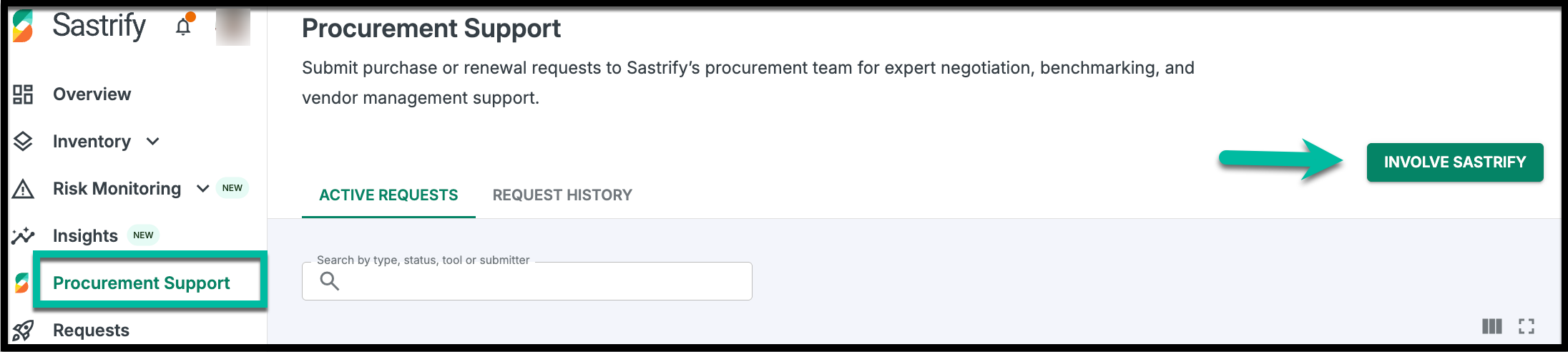
- Entry Point: Navigate to Procurement Support in the left-side menu and select Involve Sastrify.
- Select Use Case: Choose whether this is for a New Purchase or a Renewal.
- Define Support Type: Select Benchmark Request or Negotiation Support.
- Complete the Form: Fill out the tailored request form. Provide as much detail as possible to minimize delays.
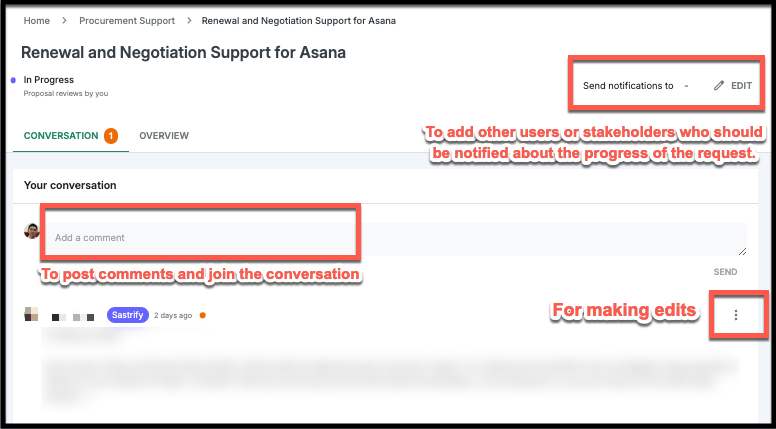
- Add Stakeholders: Tag internal colleagues who should be notified of the request's progress.
- Submit: Click Submit to notify the Sastrify IT buyer team immediately.
To ensure the best service and streamline the procurement process, please always:
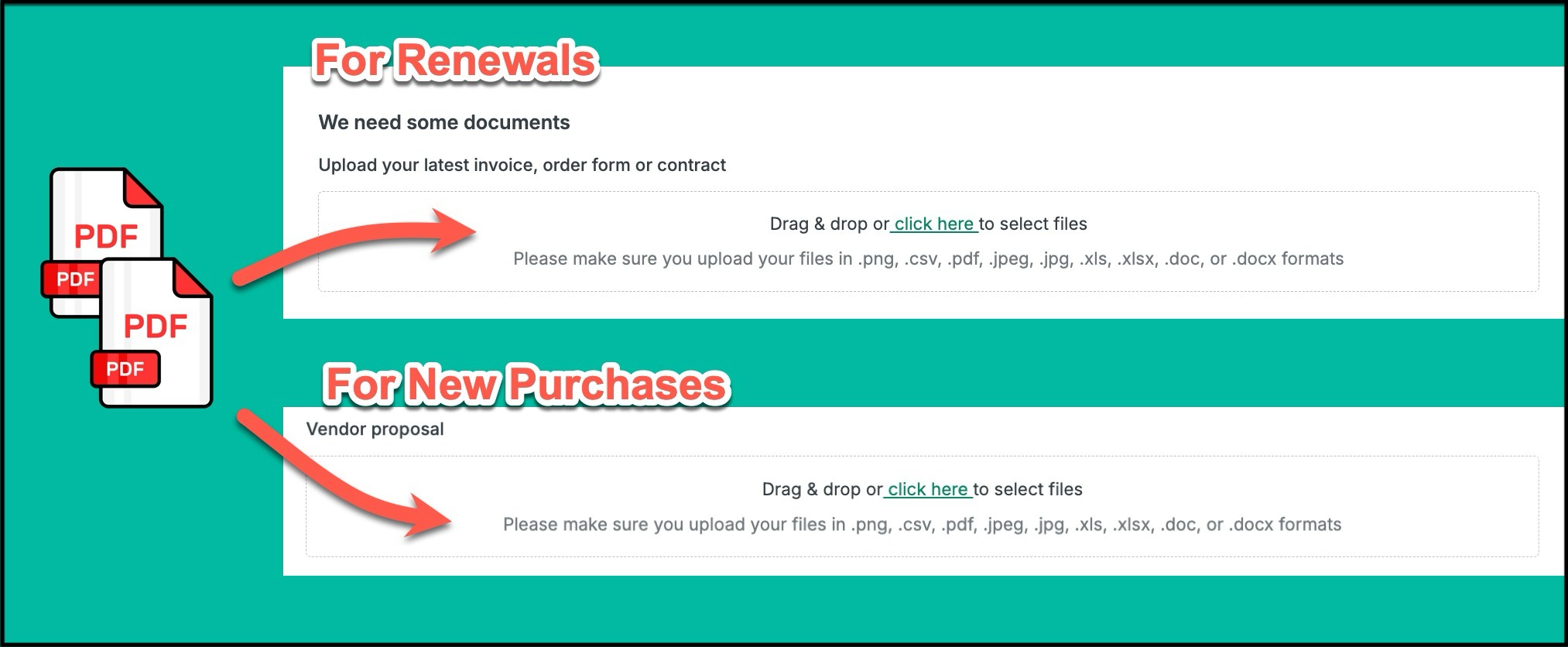
Upload all relevant documents (e.g., current contracts, quotes, proposals, invoices, or any other useful files).
Provide complete and accurate information by filling out all input fields with clear and precise details.
A well-prepared request allows our IT buyers to start immediately, minimizing delays caused by back-and-forth communication and ensuring a faster resolution.
Managing Your Requests
The Procurement Support page serves as your central dashboard for tracking every active and historical request.
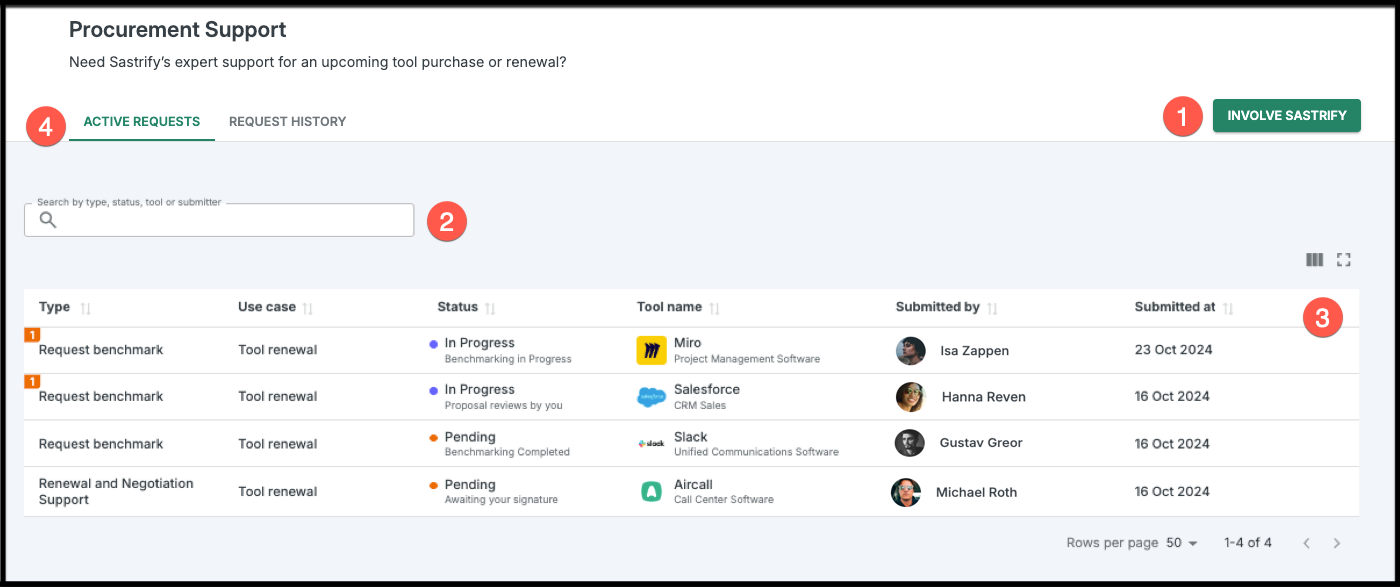
“Involve Sastrify” Button—For starting a new procurement support request.
Search Bar— Quickly find specific requests in the table below by entering keywords.
Tracking Table—View all submitted procurement support requests. You can sort, filter, or adjust columns to customize your view. Each request appears as a clickable line item that opens its detail page, where you can use the Conversation tab to collaborate directly with your assigned IT buyer.
Active & History Tabs—The Active tab shows ongoing requests, while the History tab archives closed requests for easy reference.
Each procurement support request also includes a status, keeping you informed of its latest development:
Open—Automatically set when the request is created.
In Progress—Indicates the request is actively being worked on.
Pending—Requires a specific action from the customer.
Closed—The request has been resolved and remains in the tracking table for reference.
Procurement Support Detail Page
Clicking any request in the table opens its detail view, which is split into two sections:
Conversation Tab: Collaborate directly with your assigned IT buyer and internal team members by posting comments or sharing updates.
Overview Tab: View the summary of your initial request and manage all associated files and documentation.
Integration: Using Jira for Procurement Support
If your team works primarily in Jira, you can create and manage these procurement support requests without leaving your Jira environment. This integration allows tool owners to stay synced with Sastrify's procurement team directly from their existing workflow.
For more information on how to install the Jira app and use its functionality, please read this article.
Did you find it helpful? Yes No
Send feedback