
Authentication & User Management
-
- Identity Provider (IdP): The Foundation of Sastrify Insights
- Uncover SaaS Usage and Shadow IT with Identity Provider (IdP) Discovery
- Integrating HRIS to Enrich Identities & Insights
- Admin Guide: Deploying the Sastrify Chrome Extension
- Admin Guide: Deploying the Sastrify Microsoft Edge Extension
- Manual Installation Guide: Sastrify Chrome Browser Extension
- Manual Installation Guide: Sastrify Edge Browser Extension
- Setting renewal dates & reminders
- Assigning & Modifying Subscription Owners
- Uploading & Managing Your SaaS Documents in Sastrify
- Sastrify App Support: Get Help & Give Feedback
- Sastrify's commitment to security and privacy standards
- Integrating HRIS to Enrich Identities & Insights
-
- Capturing Subscription Details with Contract AI
- Adding a New Subscription Manually
- Slack Integration: Bringing Sastrify into Your Internal Communication
- How to bulk upload your invoices
- Automating Document Uploads via Email Forwarding
- Managing Your Notification Preferences
- Tools and Spend Importer: Bulk Upload & Visualization
- Tool Matching: Aligning ERP Data with Your Inventory
- Managing Collaboration with Custom Tasks
- Task Automation: Standardizing and Automating Routine Actions
-
- Workflows: Automate procurement processes with consistency
- Requests: Streamline procurement process and internal approval
- Get Procurement Support for New Purchases and Renewals
- How to submit and track Procurement Requests via Jira Integration
- Scope of service: Custom benchmarking & contract review
- Scope of service: Negotiation & renewal support
- Scope of service: Custom SaaS Optimization Advisory
- Purchase your SaaS through the SastriMarket
-
- Connecting Your ERP & Accounting Software
- Spend Import: Validate and fine-tune your imported spend data
- Export spend data from Candis to Sastrify
- Export spend data from Spendesk to Sastrify
- Export spend data from Pleo to Sastrify
- Export spend data from Moss to Sastrify
- Export spend data from DATEV to Sastrify
- Export spend data from Ramp to Sastrify
-
- Configuring Authentication & Access
- User Management: Managing Users and Platform Roles
- Configuring Microsoft SSO Authentication
- Configuring Okta SSO Authentication
- Configuring JumpCloud SSO Authentication
- Configuring Cisco Duo SSO Authentication
- Configuring Cloudflare SSO Authentication
- Configuring OneLogin SSO Authentication
- Having trouble logging in?
- Understanding user roles and permissions
-
- Okta M2M Integration Guide
- Accounting & ERP: Connecting NetSuite to Sastrify
- Accounting & ERP: How to connect Quickbooks
- Accounting & ERP: How to connect Microsoft Dynamics 365
- Accounting & ERP: How to connect Workday ERP
- Accounting & ERP: How to integrate Pleo with Sastrify
- HRIS: Connecting Officient to Sastrify
-
- ERP & Accounting Integration FAQs
- SSO / IDP Discovery Integration FAQs
- Browser Extension FAQs
- HRIS Integration FAQs
- Usage Analytics FAQs
- Contract AI & Subscription Details FAQs
- Tools and Spend Importer FAQs
- Invoices FAQs
- Achieved Savings FAQs
- Form component guide for Sastrify form builder
- What is SaaS and Sastrify's scope of work?
- Who receives the renewal alerts or reminders?
- How does Sastrify work with currencies?
- Is the spend data from accounting export always up-to-date?
- How to work with benchmark prices
- When and how to involve Sastrify in a contract evaluation or negotiation?
- How does Sastrify interact with SaaS vendors?
- How do you handle confidentiality clauses in vendor contracts?
- Why is contract data essential for benchmarking and negotiation support?
User Management: Managing Users and Platform Roles Print
Modified on: Tue, 24 Feb, 2026 at 12:19 PM
While Identities and Employees provide the data foundation of your stack, Sastrify Users are the individuals who can log into Sastrify and perform actions within the platform. User Management page is your central hub for managing these users.
To manage users effectively, it’s important to understand where they sit in the Sastrify ecosystem:
Identities: Sourced from your IdP. They track usage.
Employees Sourced from your HRIS. They provide department/cost center context.
Sastrify Users: These are Identities or Employees who have been invited to log in, own subscriptions, and manage tasks.
How to Invite Users
There are two ways to grant platform access. We recommend inviting from the Identity Provider tab to ensure accounts are correctly linked to their usage data from day one.
Option 1: Inviting via Identity Provider (Recommended)
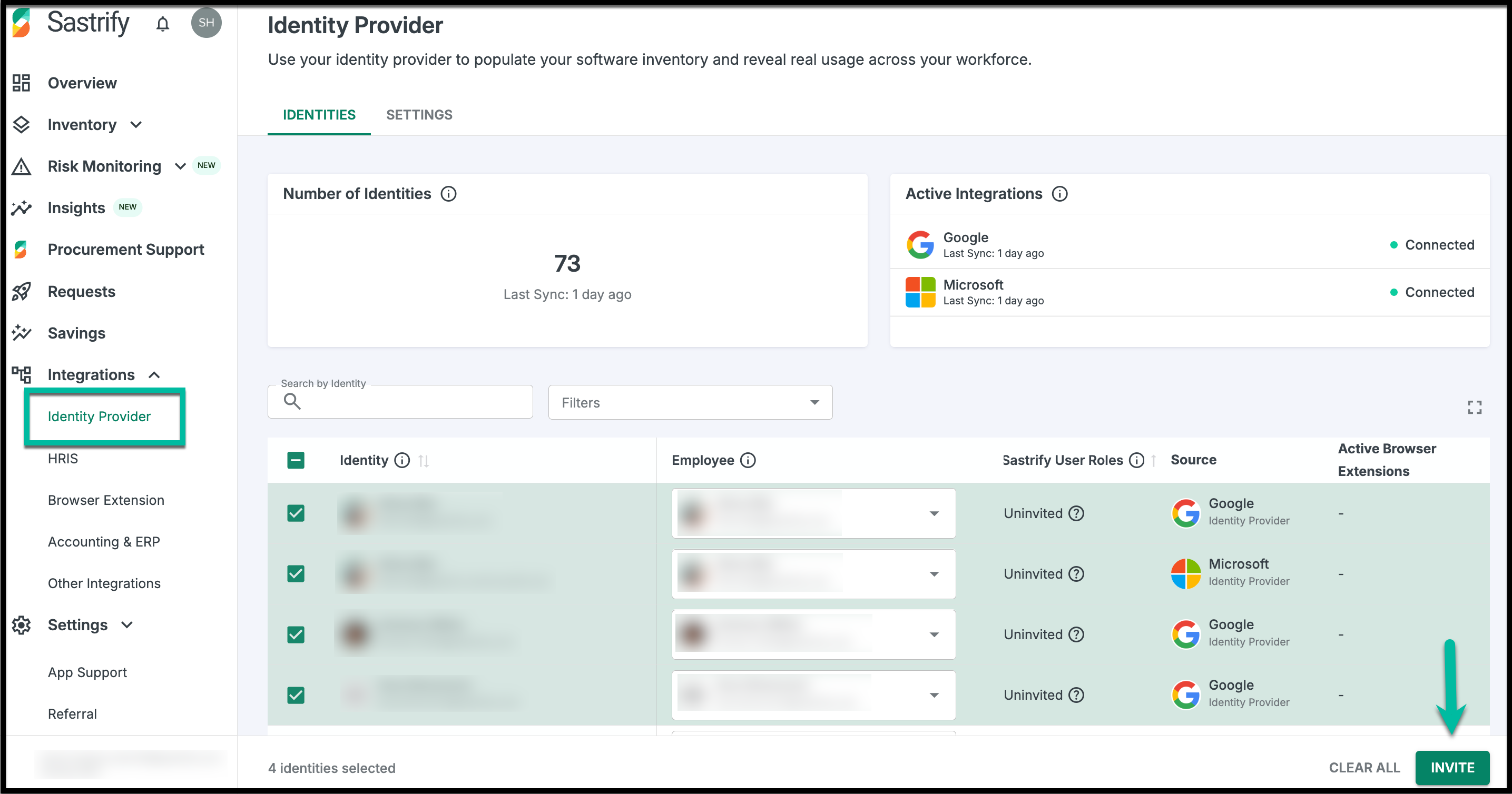
Navigate to Integrations > Identity Provider.
Go to the Identities tab.
Select the checkbox next to the specific identity (or select multiple for bulk invites).
Click Invite.
Once the invite is accepted, the individual will appear in the User Management list.
Option 2: Inviting Manually via User Management
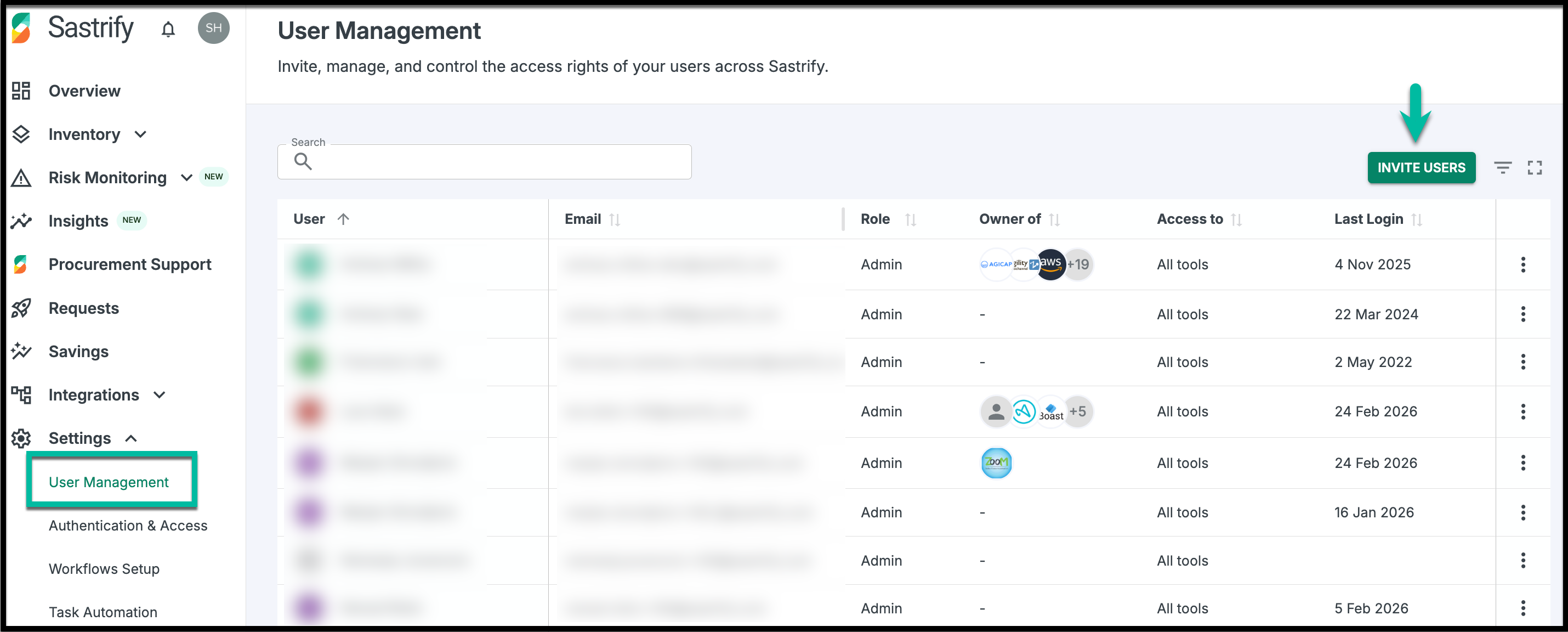
Go to Settings > User Management.
Click Invite Users.
Enter the Name and Email. (Click Add More to invite a group).
Assign a Role (Admin, Contributor, or Viewer). Note: All users in a bulk invite will share the same initial role.
Click Invite.
Managing Existing Users
To update access or details, navigate to Settings > User Management.
Edit Details: Click the three-dot icon (⋮) > Edit. You can update their name, change their platform role, or reassign the subscriptions they own.
- Resend Invitation: If a user hasn't joined yet, use the Re-invite from the three-dot icon (⋮) to trigger a new invite email.
Delete User: To revoke access permanently, select Delete. This removes their ability to log in but does not delete their underlying Identity or Employee record.
Did you find it helpful? Yes No
Send feedback